
Gateway Portal
The portal is a service-navigation component displayed on signed-in gateway pages. It makes it easy to switch among navigable application Hosts and path mappings, and provides a way to sign out of the current session. It does not change mapping permissions, allowlists, or authentication requirements.
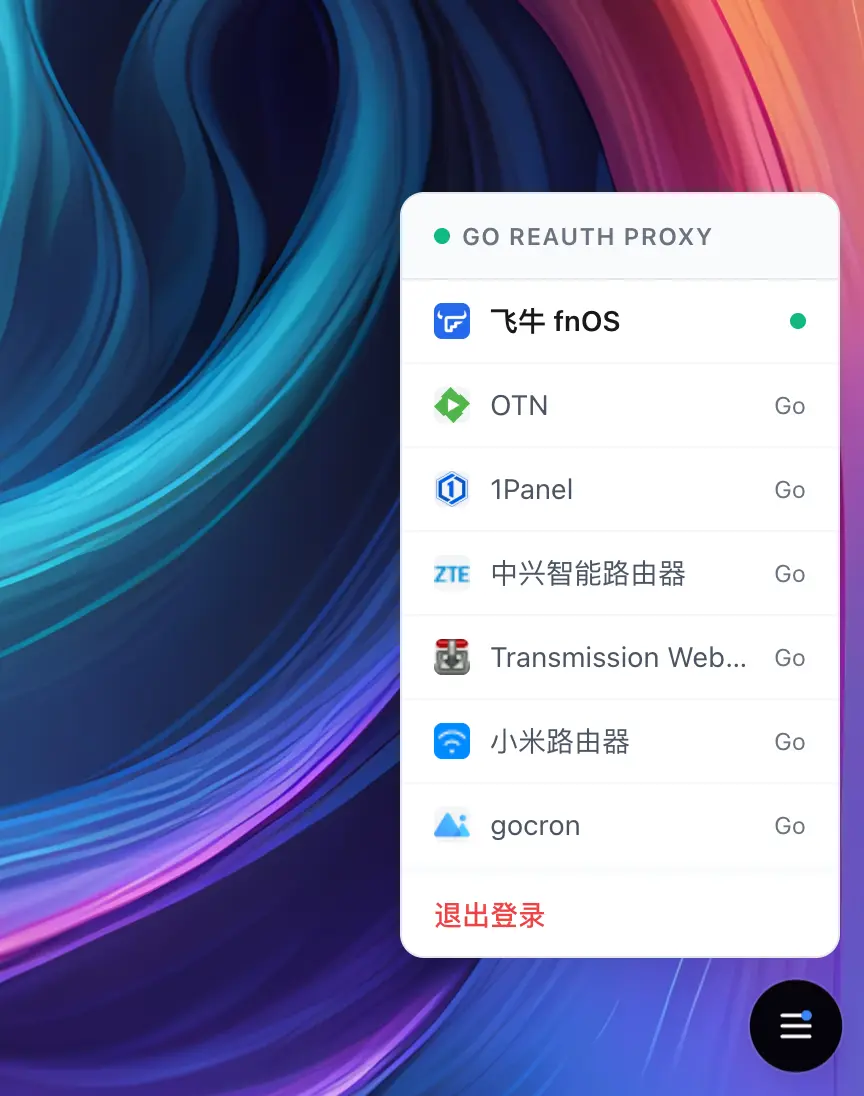
Select the floating button on the page to open the portal. From there, you can switch among services available to the current account or sign out of the current session.
Under System settings → Gateway → Portal settings, you can select the Portal version and control whether the portal appears, whether services use their title or domain, whether app icons are shown, and whether the icon snaps to a corner or can be dragged freely.
| Setting | Page behavior |
|---|---|
Enable portal | When enabled, signed-in users see an app-switching toolbar while visiting application subdomains |
Portal version | v1 Classic uses the classic toolbar; v2 Launchpad uses a full-screen glass Launchpad and can be selected at any time |
Portal display | Selects the domain or site title; an empty title falls back to the domain |
Portal icon drag position | Corners snaps the icon to a corner, while Free lets it remain anywhere in the viewport |
Show app icons | Shows collected or custom icons; v1 omits empty icon slots, while v2 generates a placeholder icon |
Show Wake-on-LAN shortcut | Appears when WOL is enabled and lets authorized signed-in accounts open the built-in device wake page |
These options are saved and synchronized as soon as you select them. You do not need to return to the main Gateway page and run a separate save. Switching versions or changing the display style does not end the sign-in session.
Whether a service appears in the portal depends on the current routing method and mapping state. A Host can be hidden individually with its Show portal setting; path mappings currently have no equivalent per-entry switch. Hiding a Host affects navigation only—it does not make the service private or public.
Static file or directory Hosts can also appear in the portal and the built-in selection page, but the gateway does not inject the floating toolbar into static HTML or file responses. Static mappings do not collect page titles or icons automatically. For a friendly entry, set the display title manually and upload a custom icon in the Host editor.
When subdomain mappings use Grouped view, the portal and built-in /__select__ page use the same group names, group order, and Host order. Switching back to list view makes both locations flat again without discarding saved group assignments. Grouping changes navigation structure only; credential service scopes and each mapping's authentication settings still apply.
After configuring the portal, sign in through a protected application Host and confirm that the selected version, titles, icons, and drag behavior match your expectations. The portal itself grants no permissions. Even if a Host appears in the list, access for a restricted credential is still determined by its actual service scope when the request is made.
The Wake-on-LAN shortcut is enabled by default but is displayed only while System settings → Features → Wake-on-LAN is enabled. The built-in /__wol__ page lists only enabled-device names and simplified status. A credential with a custom service scope must also include Built-in Wake-on-LAN page under Auth settings → Permissions. Disabling the shortcut also blocks the page through the public authentication API, but it does not prevent an administrator or third-party platform from triggering wake. See Wake-on-LAN for full setup.
If the display is incorrect, check in this order:
- Confirm that the global portal is enabled and that the current Host has not disabled
Show portal. - Confirm that the current request is signed in and uses a routing mode that supports Host entries.
- Check the mapping's site title. In title mode, an empty title displays the domain.
- If an icon is missing, edit the corresponding Host under
Domainsand openApp icon. A reverse proxy can recollect its icon; a static mapping requires a custom upload. v2 displays a generated placeholder until an icon is available. - If grouping or ordering is incorrect, confirm that subdomain mappings currently use
Grouped view, then inspect the order underManage groups. - Compare the credential's service scope. Seeing an entry in the list does not mean the credential can access it.
- If Wake-on-LAN is missing, check the WOL feature, the portal shortcut, and whether the current credential includes the built-in WOL page.
LAN navigation
Enable Smart LAN detection under System Settings → Gateway → Portal; it is off by default. Clients identified by the gateway as private-network or VPN sources open the existing proxy target URL directly. Public or unknown sources use the original domain or gateway path. The built-in selection page and fnOS console application bar also use this setting.
Detection uses the client IP identified by the gateway and does not probe target reachability. Loopback, invalid or unsuitable browser targets, and static file or directory mappings retain the gateway URL. Test the same service from LAN and mobile networks and check the final address. With a CDN, reverse proxy, or tunnel, first verify real-client-IP handling.
Direct target access bypasses fn-knock gateway authentication and uses the target application's own sign-in and permissions. The target must be reachable from the visitor's device. This option does not establish a VPN, open ports, or repair local routing.