
Frequently Asked Questions
Find the symptom that matches your problem. First confirm the deployment method, runtime mode, and whether you are opening the admin entry point or gateway entry point.
Cannot Open or Sign In to the Admin Entry Point
Which Should I Open: the Desktop Icon or the Gateway Entry Point?
| Goal | Entry point |
|---|---|
| Change configuration, view logs, or switch modes | Open Knock from fnOS or DSM; use Services → Knock on OpenWrt; open local 127.0.0.1:7991 on macOS; use Windows Manager on Windows |
| Test public access, a domain, tunnel, or application mapping | Use the actual gateway port or corresponding external domain; the default gateway port is 7999 |
OpenWrt uses admin port 7991 by default, while its gateway remains on 7999. The macOS and Windows admin pages are strictly limited to 127.0.0.1:7991 and cannot be opened directly from another machine. See Ports and Entry Points for other deployments.
Windows Admin Page Does Not Open
First open Knock Windows Manager, confirm that the FnKnock service status is ready, then click Open admin panel. A new installation opens http://127.0.0.1:7991/ by default; the page is available only on the Windows host where fn-knock is installed.
If the service cannot become ready, first check whether any of the five default ports is already in use. Change and save ports through the manager instead of editing %ProgramData%\FnKnock\config\runtime.json directly. See Deploy on Windows (x86_64) for the complete procedure.
macOS Admin Page Does Not Open
On the Mac where fn-knock is installed, open http://127.0.0.1:7991/ and run sudo knock status. If the service is not ready, use sudo knock logs to inspect the LaunchDaemon and five runtime ports. Do not expose 7991 publicly. Use an SSH local forward when administering from another computer. See Deploy on macOS for the complete procedure.
Synology Reports That It Cannot Read the DSM Session
Close the current fn-knock page, confirm that the DSM sign-in is still valid, then reopen Knock from the DSM main menu. The Synology admin entry point must read the session from the DSM desktop window. Bookmarking or directly opening launch.html or index.cgi, or copying an internal URL into a new tab, may omit the required DSM context.
Only members of the administrators group can enter the admin UI. If it still fails, confirm in Package Center that fn-knock is running, then sign in to DSM again. Do not expose 7998 publicly instead; see Deploy on Synology DSM 7 (x86_64 / ARM) for the complete entry-point and port details.
Admin UI Reports a Storage Error
The current release uses SQLite. A new installation does not need Redis.
- New installation: Check data-directory permissions, port conflicts, and service logs.
- Upgrade from an early Redis-based release: Keep the old Redis data volume and follow the migration steps in Deploy with Docker Compose.
- OpenWrt: Confirm that
/etc/fn-knock/gatewayand/etc/fn-knock/datastill exist. After an upgrade from an older version, also check whether the UCI data directory migrated from/var/lib/fn-knock.
Do not create an extra empty Redis instance for a new installation. Remove the old Redis service and data volume only after migration is complete and the admin UI is confirmed to work.
Forgot the Admin Password
The admin password is not the same as a visitor authentication credential. Use the local console or container procedure for your deployment to reset it; do not delete the data directory:
- Docker: See the admin-password recovery instructions in Deploy with Docker Compose.
- OpenWrt: See Deploy on OpenWrt.
- Native fnOS FPK: Reopen
Knockfrom the fnOS desktop first. - macOS: Run
sudo knock reset-panel-password. - Windows: Use
Clear admin passwordinKnock Windows Managerfirst. If the manager cannot be opened, run.\fn-knock-service.exe reset-panel-passwordfrom an Administrator PowerShell window in the application installation directory.
Admin Works, but Public Access Fails
Admin UI Opens, but the External Domain Still Times Out
A working admin UI proves only that the admin service is running. Check in this order:
- Confirm that the selected network topology is correct: direct public access or NAT traversal.
- Confirm that external traffic reaches the actual gateway port rather than the admin port. The default gateway port is
7999. - Confirm that DNS points to the current public or tunnel entry point.
- For direct public access, confirm that router port forwarding and the host firewall allow the connection.
- For NAT traversal, confirm that the tunnel is online and points to the correct local gateway.
- Check whether the request appears in
Request logs.
If you cannot configure public inbound access, use NAT Traversal with Subdomain Routing.
Windows 7999 Is Unreachable from the LAN or Internet
The current Windows edition listens on all IPv4 / IPv6 interfaces at 7999 by default. If it is unreachable, the inbound path is usually incomplete; the gateway is not limited to loopback. The FnKnock Gateway inbound program rule created by the installer covers only the Windows Domain and Private network profiles, not the Public profile.
Check the full path: the current Windows network profile and third-party security software, router or NAT forwarding, the IPv6 firewall, and whether the ISP permits inbound connections. Admin port 7991 remains strictly local and cannot serve as a public origin. Windows does not support dynamic firewall management or Direct mode authorization based on sign-in state.
If you run a tunnel or reverse proxy yourself on the same Windows host, point its origin to 127.0.0.1:7999. fn-knock does not manage that process, and it must preserve the Host and real client IP.
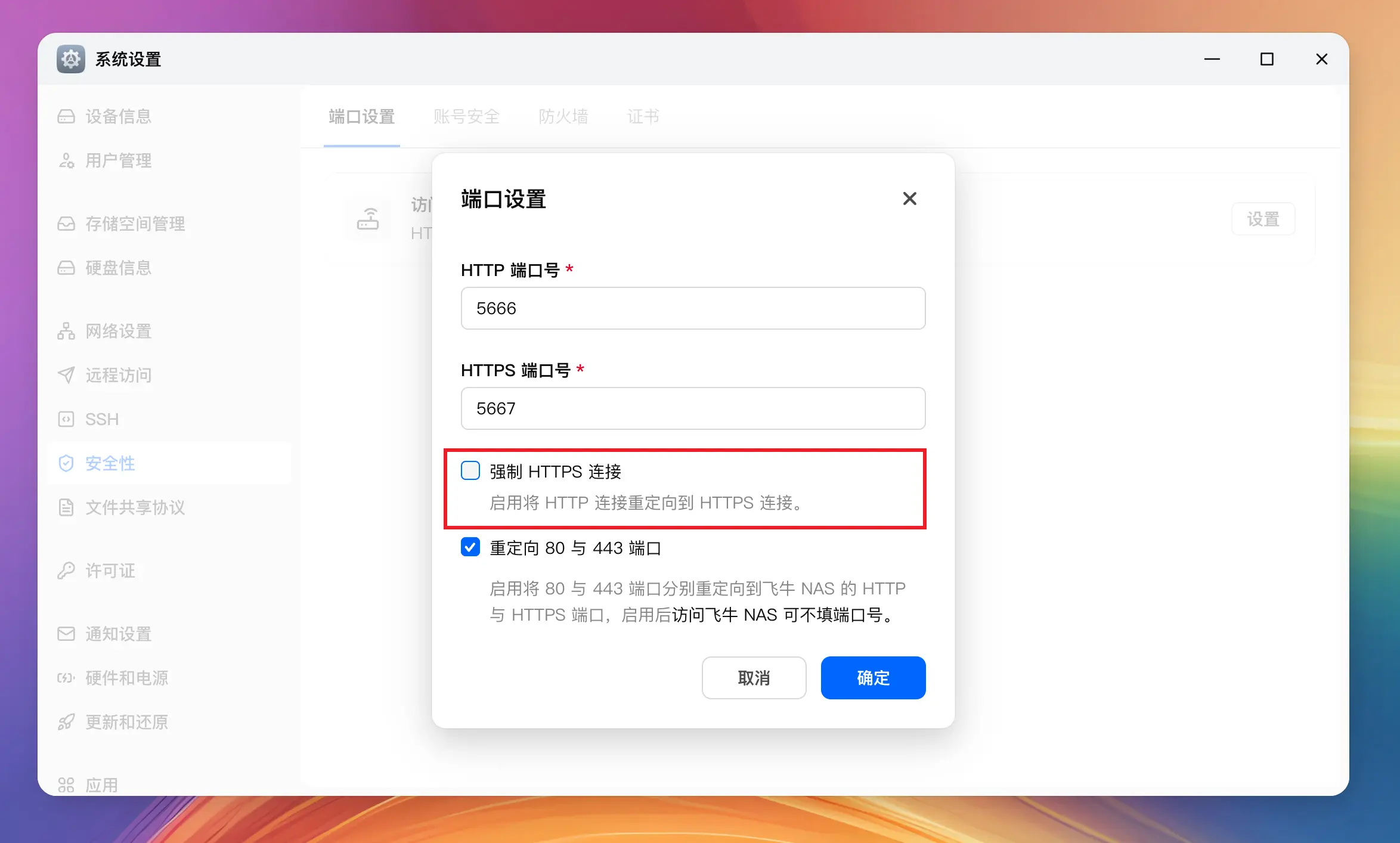
Native fnOS FPK Redirects 7999 to Another Port
The fnOS Force HTTPS connections option may redirect the request before it reaches fn-knock.
Open fnOS System Settings → Security → Port Settings → Settings, disable Force HTTPS connections, and test 7999 again.
Automatic HTTPS Fails to Start
Automatic HTTPS is available only when the feature appears for the current deployment and the host actually has an inbound path and an available port 80. Docker, OpenWrt, and Synology DSM 7 SPK do not provide this switch. Check:
- Whether another service is using
80. - Whether the current process has permission to listen on a privileged port.
- Whether an fnOS port redirect or another frontend entry point conflicts with it.
- Whether an SSL certificate has already been configured.
Automatic HTTPS does not request a certificate for you. Although Windows listens on all interfaces at 7999 by default, enabling this feature does not automatically open Windows Firewall, router/NAT, or ISP inbound access. Docker, OpenWrt, and Synology deployments should terminate TLS at a frontend proxy, edge platform, or external gateway. See TLS Certificates and HTTPS.
Application Port Is Reachable without Sign-in
An entry point is bypassing fn-knock. Check router port forwarding, the host firewall, the IPv6 firewall, and frontend proxies, then remove any public rule that points directly to the application service.
Direct authorization should expose only the authentication gateway, then temporarily allow the current egress IP after sign-in. Docker, macOS, and Windows do not let fn-knock manage the host firewall.
Domain, Subdomain, or Tunnel Does Not Work
Which Option Should I Choose?
| Condition | Option |
|---|---|
| Public inbound access is available and you mainly use web services | Public IP Access with Subdomain Routing |
| No public inbound access is available | NAT Traversal with Subdomain Routing |
| You need to protect original ports such as SSH or Remote Desktop | Direct Access on Original Ports |
| You must preserve a legacy path prefix | Path mode under Reverse proxy mode, for compatibility only |
Choose the entry point based on the network topology, then choose Host, path, or TCP/UDP routing, and finally set an access policy for each service.
Does Tunnel Mode Need DDNS?
Usually not:
- FRP uses the server address and external port.
- Cloudflared uses the domain bound to the Cloudflare Tunnel.
Configure DDNS only when the tunnel entry point itself depends on a dynamic public address.
How Do I Choose Between FRP and Cloudflared?
- Use FRP when you already have an FRP server and want control over public ports and traffic.
- Use Cloudflared when you already use Cloudflare and want to reduce public-server maintenance.
Both should send the authentication and application domains to the fn-knock gateway while preserving the original Host. See NAT Traversal and Tunnels.
Should the Cloudflared Origin Use HTTP or HTTPS?
- If the local fn-knock gateway has no certificate, use
http://...:<actual-gateway-port>. - If the local gateway has a valid certificate that Cloudflared trusts, use
https://...:<actual-gateway-port>.
When Cloudflared and fn-knock run in different containers, localhost refers to the wrong container. Use a mutually reachable container name or LAN address. See Cloudflare Tunnel with cloudflared.
A Subdomain Opens the Wrong Service
Check:
- Whether the frontend proxy or tunnel preserves the original Host.
- Whether the root domain and subdomain mapping match.
- Whether a duplicate or fallback mapping matches first.
- Whether the public origin points to the actual gateway port.
The admin entry point cannot be used as an application origin.
Path Mapping Produces Asset 404s or a Sign-in Loop
The upstream application is not handling its path prefix, redirects, Cookies, or WebSocket correctly. Move new configurations to independent subdomains. Continue using Path mode only when the upstream explicitly supports prefix-based deployment.
Discover Does Not Find a Service
First confirm that the target is a local IPv4 HTTP service reachable from the fn-knock runtime. Service discovery does not scan the public internet, IPv6, domain names, or non-HTTP protocols. In Docker, 127.0.0.1 refers only to the container itself.
Narrow the scan CIDRs to the target's actual network. Confirm that the selection does not exceed 16 CIDRs or 1024 hosts in total, then connect directly to the target port from the fn-knock runtime. An open TCP port that cannot be analyzed over HTTP does not produce a candidate. See Service Discovery and Bulk Onboarding for complete range and intensity settings.
EdgeOne or ESA Causes a Sign-in Loop or Broken Page
Check:
- Whether the origin points to fn-knock's actual gateway port.
- Whether support for the corresponding platform is enabled in subdomain mapping.
- Whether caching is disabled and WebSocket is enabled.
- Whether the real client IP request header is forwarded correctly.
- Whether dual-stack origin routing sends requests to different entry points.
See Put Tencent Cloud EdgeOne in Front of fn-knock and Put Alibaba Cloud ESA in Front of fn-knock for platform-specific configuration.
Traffic Still Uses the Public Path After Returning to Home Wi-Fi
The client is still using the public DNS result. When using Smart Connect on the standard fnOS FPK, check:
- Whether
System settings → Features → Smart Connectis enabled. - Whether the device's local LAN IP is correct.
- Whether the router's DHCP DNS setting or the client's DNS points to the device running fn-knock.
- Whether the client's DNS cache has been refreshed.
Smart Connect optimizes LAN DNS only for Subdomain mode on the standard fnOS FPK and does not modify public DNS. OpenWrt, Docker, and other deployments do not provide this capability; configure split DNS on the router or a separate DNS service instead. See Smart Connect.
Sign-in or Session Problems
How Should I Choose TOTP, Password, Passkey, or QQ?
- TOTP: The default sign-in method and the identity foundation for Passkeys, QQ, and other external accounts; always retain a working recovery method.
- Username and password: Suitable for members who cannot conveniently use an authenticator app.
- Passkey: Provides convenient sign-in on top of an existing TOTP identity.
- QQ: Links one QQ account to an existing TOTP for quick sign-in, inherits that TOTP's service scope, and is not an independent user.
After switching to username-and-password sign-in mode, the sign-in page does not show Passkey, QQ, or other external-account options. See Authentication, Sessions, and Service Scopes and Link QQ for Quick Sign-in.
Where Do I Configure the Challenge on the Sign-in Page?
Open System settings → Challenge. See Pre-login Bot Protection for the difference between PoW and Turnstile, and Cloudflare Turnstile for Cloudflare configuration.
How Does “Remember Me” Affect Sessions?
Session lifetimes are configured under System settings → Sessions. Enabling Remember me uses the long-term session lifetime. If IP authorization is set to Follow session, that authorization is extended as well.
Use long-lived sessions only on personal, trusted devices.
Other Sign-in Methods Stop Working After Deleting a TOTP
Deleting a TOTP also invalidates its linked Passkeys, QQ account, and other external-account bindings. Before deletion, confirm that another usable identity remains. After deletion, the linked sign-in methods must be bound again.
Successful Sign-in Returns to the Sign-in Page
Check in order:
- Whether the authentication domain and application domain use the same public scheme.
- Whether the root domain, Cookie scope, and Passkey RP ID match.
- Whether the browser blocks Cookies.
- Whether an edge platform cached the sign-in response.
- Whether the frontend proxy forwards the correct
Host,X-Forwarded-Host, andX-Forwarded-Proto. - Whether the system time is correct.
When the system detects a persistent loop to the same authentication page or target, it pauses automatic redirects. Start again from the original application Host; do not repeatedly refresh or copy the authentication callback URL.
Cannot Sign In After Entering the Address Directly in the fnOS App
Whether the fnOS App can follow web authentication redirects and reuse Cookies depends on the client version. A browser session is not necessarily shared automatically with a native app:
- Subdomain routing or NAT traversal: Open the same external domain in the mobile browser and sign in first.
- Direct authorization: Open the actual gateway port in the browser first, then return to the app and connect to the original address.
See Use the fnOS App through fn-knock for the complete procedure.
Access Suddenly Stops After Changing Networks
Mobile networks, proxies, and home broadband can change the egress IP. Reopen the authentication entry point and sign in, then view Trace under System settings → Sessions.
The trace records how a session moves from its original IP to a new one. It is not a standard request log.
What Does the fnOS Icon Next to a Session Mean?
It means that an fnOS token is attached to the sign-in session, commonly when the fnOS App or web interface continues using the current sign-in. Kicking, signing out, or session expiration invalidates the attached token as well. See Sessions, Source-IP Authorization, and IP Changes.
Routing, Security, or Log Problems
Still Reported as Outside the Allowlist After Sign-in
First confirm whether the Host inherited a legacy strict_whitelist rule:
Require sign-indisabled: The current login-first mapping is public and checks neither sign-in nor the allowlist; this does not apply to a legacy strict-allowlist mapping.Require sign-inenabled: Manual source authorization can grant access independently. Automatic IP authorization normally lets the same source continue to connect but does not override a service-scope denial carried by the credential; the session is checked when no usable source authorization exists.- Legacy strict-allowlist rule: The mapping is not necessarily public even when
Require sign-inis disabled. It evaluates only valid source authorization records, created manually or automatically after sign-in, and a browser session Cookie alone cannot replace the source condition.
The current Host editor does not expose a strict-allowlist selector. For a legacy rule, confirm the manual or automatic authorization record for the current egress IP. If only manual sources should be allowed, disable automatic post-login IP authorization and review any automatic entries left behind. To leave the rule, first record the entire mapping configuration, then recreate the mapping through the current UI; disabling Require sign-in alone is not enough to make it public.
fnOS Share Link Is Blocked
fnOS Share Bypass works with subdomain routing and NAT traversal, not Direct mode. Confirm that the actual route selected for /s/... points to fnOS; bypass does not apply if another path rule or an incorrect default route takes over the request. See fnOS Share Bypass.
Where Do I Enable Request Logs?
Enable them under System settings → Logs. Once enabled, Request logs appears in the sidebar and shows the matched Host, upstream, and response status by date. See Request Logs.
CPU or Memory Is High, but Event Center Shows No Alert
By default, usage must remain at or above 80% for about 30 seconds before an alert is created. A brief spike does not immediately produce an event, and recovery likewise requires sustained usage below 60%. Windows does not provide system resource monitoring. In Docker, values are interpreted against the resource boundary visible to the container runtime.
First confirm platform capability and that the event system and resource events work, then distinguish the “resource event creation conditions” from the “notification rule trigger conditions.” The latter determines only when an existing event is sent; it does not change sampling thresholds. See Event Center and Notifications.
What Is the Difference Between the General and Scanner Blocklists?
- Scanner blocklist: Automatically blocks sources after unauthenticated probing of unusual paths.
- General blocklist: Contains IPs explicitly blocked by an administrator from logs or the blocklist page.
The general blocklist accepts only exact IPv4 or IPv6 addresses, not CIDRs. Use Gateway Visibility for network or regional restrictions and Global Blocklist for an individual suspicious IP.
Why Should I Configure HTTPS Early?
HTTPS protects sign-in credentials and session Cookies and is also required for normal Passkey use. Public domains and public FRP or Cloudflared entry points should all use a trusted certificate. See TLS Certificates and HTTPS.
Installation, Upgrade, or Data Problems
How Do I Install and Upgrade on OpenWrt?
OpenWrt supports .ipk and .apk packages for matching architectures. After installation, the entry point is Services → Knock.
Install a newer package to upgrade. In-app FPK updates do not apply to OpenWrt. A normal upgrade preserves /etc/config/fn-knock, /etc/fn-knock/gateway, and /etc/fn-knock/data; the old default /var/lib/fn-knock is migrated to the new persistent data directory during upgrade. See Deploy on OpenWrt for the complete commands.
Data Is Empty After a Docker Upgrade
Stop further writes first and confirm that the old data volumes still exist. The current release uses SQLite; run the historical Redis-to-SQLite migration only when upgrading from an early Redis-based release.
Do not delete the old volumes, replace an existing mount with an empty volume, or add Redis to a new installation. Follow the backup and migration steps in Deploy with Docker Compose to recover.
A .knock Backup Cannot Be Imported or Produces Warnings
Confirm that the file retains its original .knock extension, is no larger than 128 MiB, and was exported by a version no newer than the current instance. The target version must also fall within the supported range shown in the error. Do not falsify the version by editing the archive JSON.
A warning after a successful import means that configuration entries were restored but one runtime synchronization step for the gateway, WAF, SSL, or another component failed. It does not mean the entire import rolled back automatically. Keep an admin entry point available, inspect each warning, and manually resave the corresponding configuration instead of repeatedly importing the same file first. See Backup, Restore, and Data Cleanup.
How Do I Update Windows or Clean Up Its Data?
Install Windows updates through Knock Windows Manager or Check for updates in the system-tray menu. The web About / Updates page displays only the version and release notes. Export a backup before upgrading; the installer restores the previous program and data if the new version fails to start.
After uninstalling the Windows application, %ProgramData%\FnKnock is retained for recovery and contains SQLite, certificates, and configuration. Delete that directory separately with administrator privileges only after confirming that recovery is no longer needed.
How Do I Update, Roll Back, or Uninstall macOS?
Use sudo knock update for the current architecture and sudo knock rollback for the retained previous version. sudo knock uninstall removes the program and LaunchDaemon but keeps configuration, data, and logs. Only sudo knock uninstall --purge, followed by typing DELETE, removes everything. See Deploy on macOS.
Feature Entries Differ from Older Documentation After an Update
First confirm the current deployment capabilities:
| Capability | fnOS FPK | Docker | OpenWrt | Linux service | macOS | Synology DSM 7 SPK | Windows x86_64 |
|---|---|---|---|---|---|---|---|
| Host firewall and Direct mode authorization | Supported | Not supported | Not supported | Not supported | Not supported; never invokes iptables | Not supported | Not supported |
| Automatic HTTPS | Supported | Not supported | Not supported | Supported; requires port 80 and an inbound path | Supported; firewall and inbound path remain manual | Not supported | Supported; firewall, NAT, and inbound access are still required |
| ACME DNS-01 | Supported | Supported | Supported | Supported | Supported | Supported | Supported; built-in client fixed to Let's Encrypt |
| Smart Connect | Supported | Not supported | Not supported | Not supported | Not supported | Not supported | Not supported |
| SSH Security | Supported | Not supported | Not supported | Not supported | Not supported | Not supported | Not supported |
| Web Terminal | Remote SSH + optional local PTY (off by default) | Remote SSH only | Remote SSH + optional local PTY (off by default) | Remote SSH + optional local PTY (off by default) | Remote SSH + optional local PTY (off by default) | Remote SSH only | Remote SSH only |
| Built-in FRP / Cloudflared | Supported | Supported | Supported | Supported | Supported | Supported | Not supported |
| Update installation | Update in the web UI | Pull a new image | Install an IPK / APK | sudo knock update | sudo knock update | DSM Package Center / SPK | Handled by Windows Manager |
See Choose a Deployment and Access Pattern for deployment boundaries and recommended entry points.