
Link QQ for Quick Sign-in
QQ Quick Sign-in binds one QQ account to a specific TOTP credential. Once bound, a visitor can select QQ on the sign-in page to authenticate. It inherits the service scope and session policy of that TOTP credential and is not a separate user or administrator identity.
fn-knock provides a built-in QQ integration. You do not need to register an application on the QQ Open Platform or enter a Client ID, Client Secret, Issuer, or callback address.
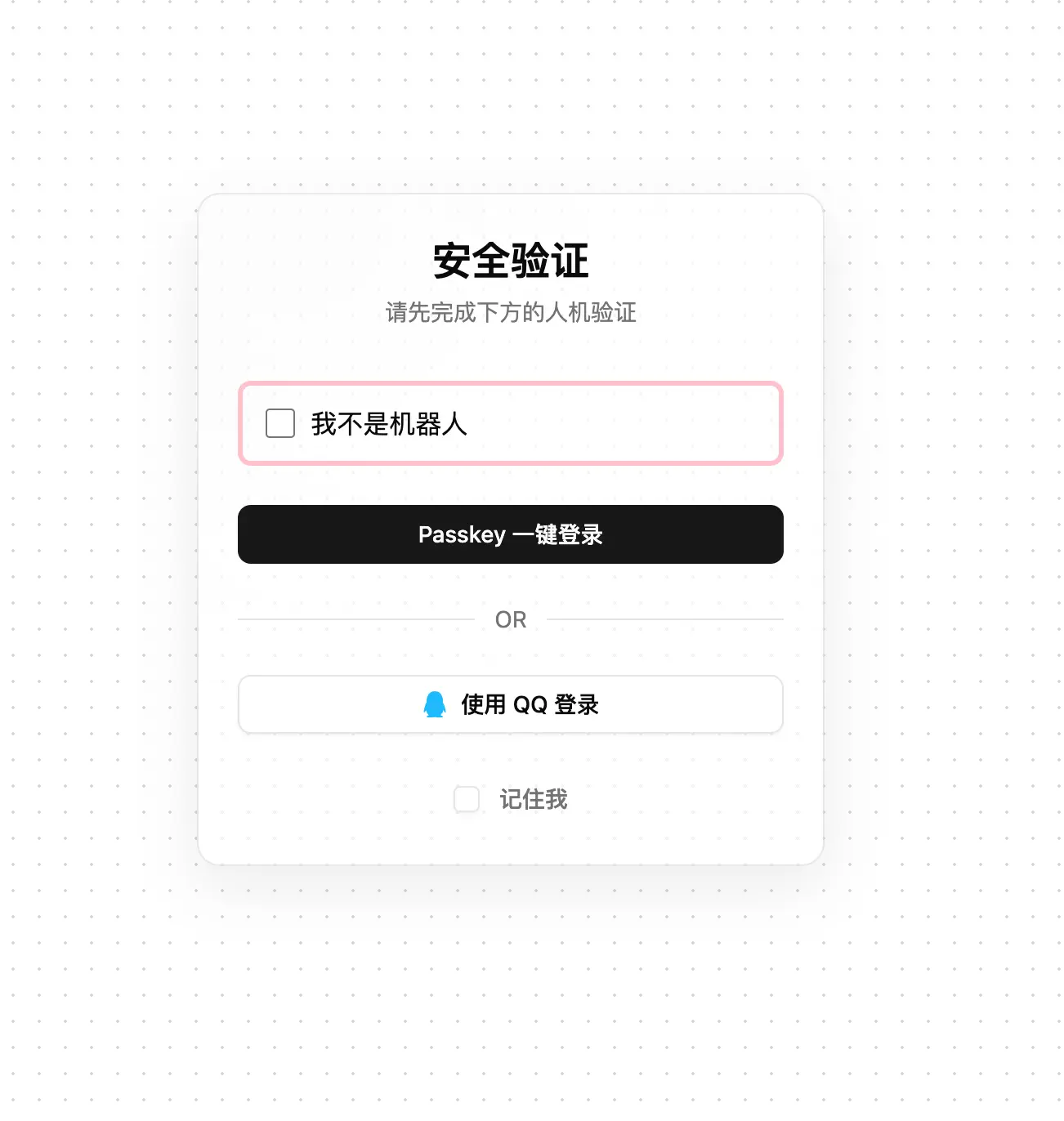
After binding succeeds, Sign in with QQ appears on the sign-in page. Once the visitor completes the human-verification challenge, they can sign in with the bound QQ account.
Before You Begin
- The current mode is
TOTP sign-in mode. Password sign-in mode neither displays nor accepts QQ sign-in. - The target TOTP credential already exists, and you have another working TOTP or recovery method. QQ should not be the only recovery path.
- The authentication Host is the final publicly reachable HTTPS address, such as
https://auth.example.com; do not uselocalhost, a container name, a private IP, or the wrong port. - The fn-knock device can reach
https://api.fnknock.cn. Adding QQ retrieves OIDC discovery information from this service.
The authentication Host also dynamically provides callback and client metadata for the QQ flow. Do not cache dynamic responses under /api/auth/oidc/ in a CDN or reverse proxy, and do not add another sign-in layer to these callback paths. A preceding proxy must preserve the public scheme and the Host that the visitor actually uses.
1. Add the QQ Provider
In the admin console, follow:
Auth → OIDC configuration in the top action menu → Add provider → QQ → AddQQ has no connection fields to enter manually. When you save it, the system initially keeps the provider disabled and tests discovery. It enables the provider automatically only after the test succeeds. If the test fails, fix DNS, network, or TLS connectivity from the device to api.fnknock.cn, then add it again.
A successful test proves only that the built-in service can be discovered. It does not replace the public callback test below.
2. Bind QQ to a TOTP Credential
- Return to
TOTP managementunderAuth. - Select
Manage quick loginon the row for the TOTP credential that should grant access. - Under
External account bindings, selectGenerate binding invite, chooseQQ, and then selectGenerate. - Open the generated link in a browser that holds the intended QQ account, select
Bind with QQ, and complete authorization. - Return to the admin page and confirm that a QQ entry appears under
External account bindings.
An invitation link is valid for exactly 30 minutes and becomes invalid after successful use. It authorizes a QQ account to join the selected TOTP credential, so do not send it to a group chat, support ticket, or anyone unrelated. If it expires or is sent to the wrong person, simply generate a new one.
The same QQ identity cannot be bound to another TOTP credential at the same time. To move it, first delete the old binding under External account bindings for the original TOTP, then generate an invitation for the new TOTP.
3. Verify Sign-in
Open the authentication Host in a private window or signed-out browser, or open a protected application Host directly. When Sign in with QQ appears, complete QQ authorization and confirm that you return to the original application address.
Finally, check the TOTP credential's service scope. QQ sign-in can open only the Hosts allowed for that TOTP. LAN and loopback sources can trigger local_exempt, so perform the final verification through a genuine external path such as a mobile network.
Why You Do Not Register the Callback Manually
The built-in QQ provider automatically generates an address similar to:
https://auth.example.com/api/auth/oidc/callback/<provider-id>The system also supplies the current instance's client metadata to the QQ service, so you do not copy a Callback URL into a third-party console or register your own QQ application. After migrating the domain, port, or preceding proxy, recheck HTTPS on the authentication Host, Host forwarding, and public reachability, then test QQ sign-in again.
Revoke and Troubleshoot
Deleting a QQ binding immediately prevents that QQ account from signing in but does not delete the TOTP itself. Deleting either the QQ provider or the linked TOTP also removes the corresponding binding. Retaining TOTP provides a recovery path if QQ authorization fails, the account changes, or a device is lost.
| Symptom | Check first |
|---|---|
| No QQ button on the sign-in page | Whether TOTP sign-in mode is active and the QQ provider passed its test and is enabled |
| Test fails while adding QQ | DNS, network connectivity, and TLS from fn-knock to api.fnknock.cn |
| Callback fails after QQ authorization | Whether the authentication Host is the final public HTTPS address, the reverse proxy preserves Host, and dynamic OIDC paths are not cached or blocked |
| QQ is already bound to another credential | Delete the old binding under Manage quick login for the original TOTP, then bind it again |
| Sign-in succeeds, but the service is still denied | The linked TOTP's service scope and the target Host's access policy |